
Connect WHOOP to Walk15
At the moment, Walk15 does not have a direct integration with WHOOP.
To track your steps using a WHOOP device in Walk15, you need to connect WHOOP to Apple Health and then set Apple Health as your steps provider in Walk15.
Follow the steps below to set this up correctly.
1. Connect WHOOP to Apple Health
Make sure your WHOOP app is connected to Apple Health and allowed to share step data.
If not yet connected:
- Open the WHOOP app
- Go to Settings / Integrations
- Enable Apple Health
- Allow access to Steps
2. Open Apple Health
Open the Apple Health app and go to the Summary tab. In the Summary screen:
- Find Steps
- Tap on Steps
3. Open “Data Sources & Access”
Scroll all the way down and tap:
Data Sources & Access
4. Set WHOOP as the priority data source
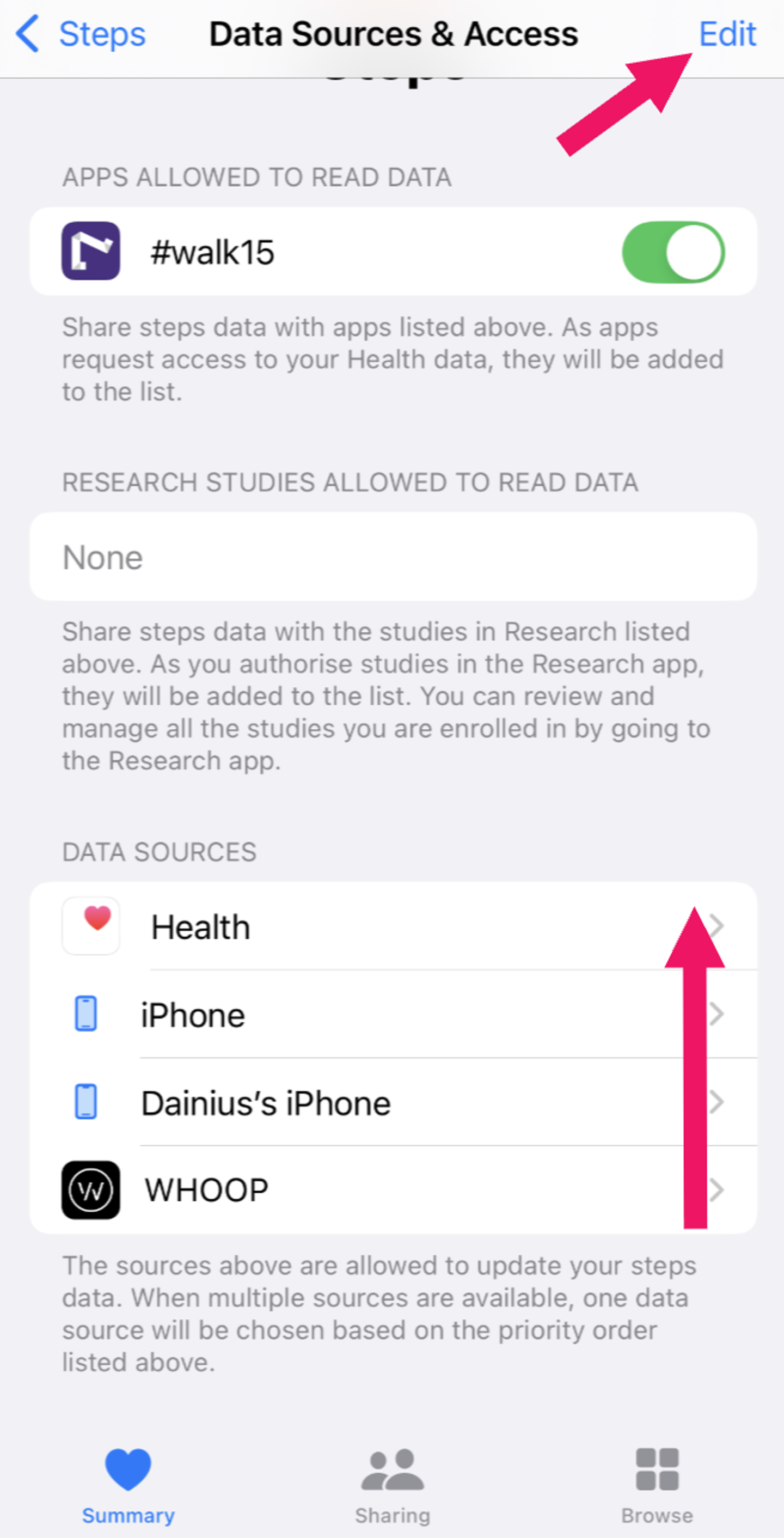
- Tap Edit (top right corner)
- Under Data Sources:
- Tap Done
It should look like this:
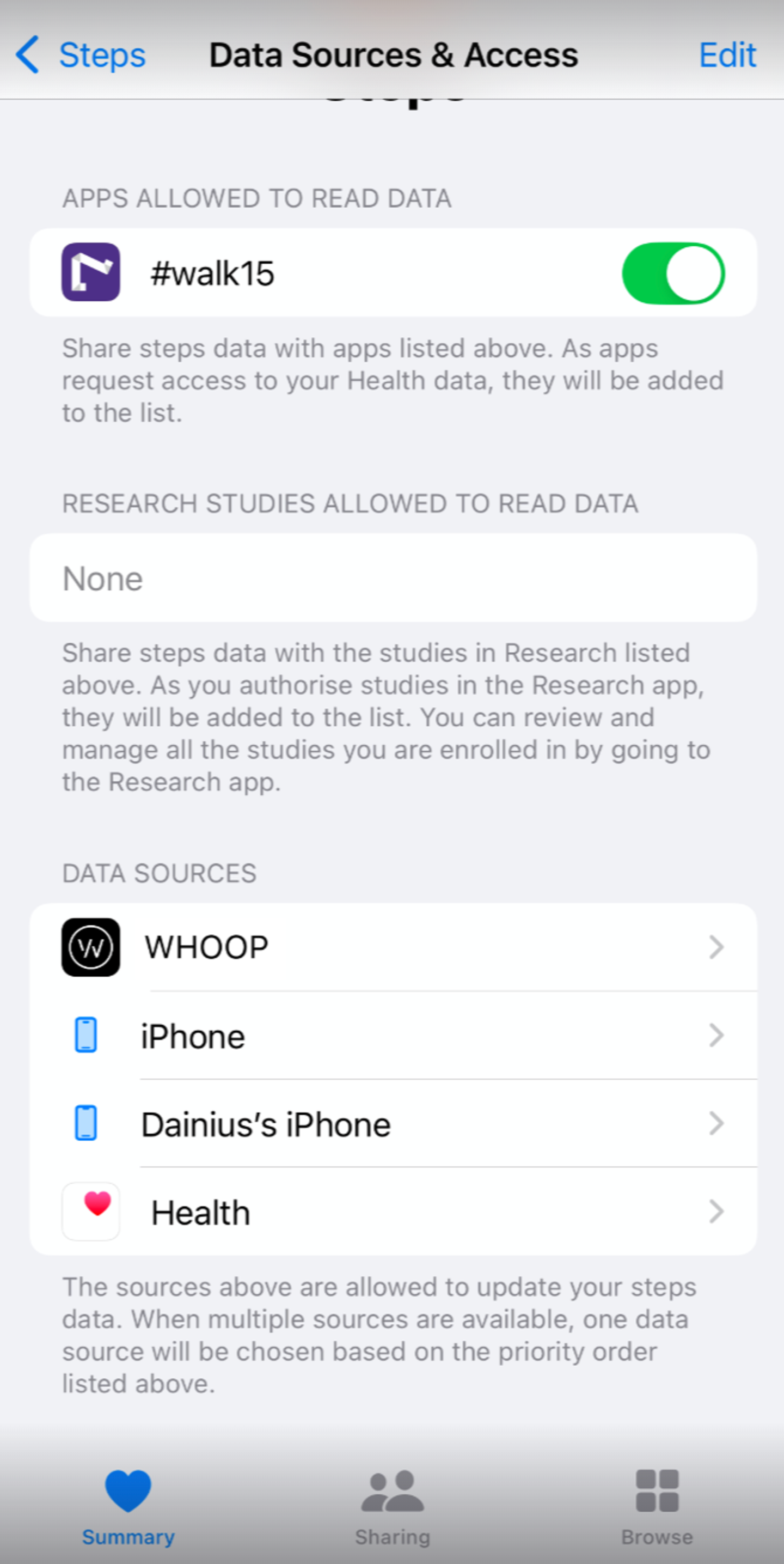
👉 This ensures Apple Health prioritizes steps coming from WHOOP.
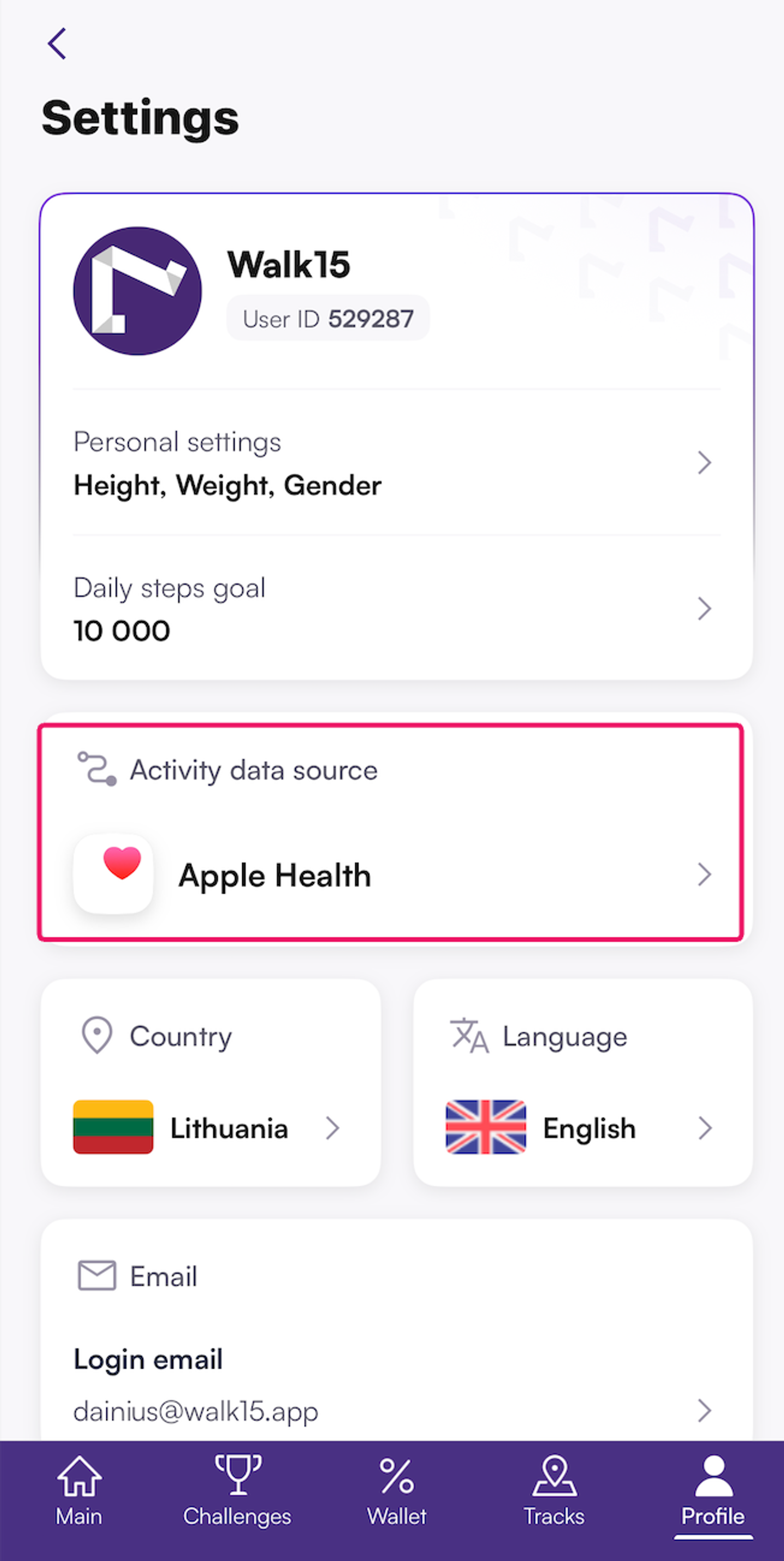
5. Select Apple Health in Walk15
- Open the Walk15 app
- Go to Profile
- Tap Settings
- Select Activity data source
- Choose Apple Health
6. Check if it works
Take a short walk and wait a few minutes, then check:
- if steps appear in Apple Health
- if the same steps are visible in Walk15